

Cloudflare Pages serves static files from a CDN in 300+ cities for free, and Astro builds static files by default. You can wire them together two ways: connect the repo right in the dashboard — and Cloudflare builds and publishes on every push to main, with zero YAML; or build it yourself in GitHub Actions and ship the finished dist through Wrangler when you need control over the pipeline. Let’s walk both, starting with the no-CI path: a five-minute setup, a custom domain, and a separate dev environment.
Table of contents
Open Table of contents
- Two ways to deploy to Pages
- First, pick the Astro mode
- The no-CI path: Git integration in five minutes
- Custom domain
- A separate dev environment: preview deploys
- When to move to GitHub Actions
- What you need to deploy from Actions
- Preview branches in Actions
- How to check it deployed
- Common gotchas
- Bottom line
Two ways to deploy to Pages
Cloudflare Pages has two modes, and they’re easy to confuse.
Git integration. You connect the repo in the dashboard, Cloudflare clones the code, runs the build on its own builders and publishes the result. Zero YAML, an automatic preview on every branch and pull request, and a push to main goes straight to prod. It’s the fastest path, and for most projects — a blog, a landing page, docs — it’s more than enough.
Direct Upload from your CI. You build the project yourself — in GitHub Actions — and push the finished dist folder to Pages with the Wrangler CLI. You write the YAML and hold the secrets, but you fully own the pipeline: any Node version, pnpm cache, a gate on tests and linters, shared steps with other jobs.
Simple rule: start with Git integration, move to Actions when you hit its ceiling — you need tests gating publication, a non-default Node version, or a pipeline shared with other services.
First, pick the Astro mode
It decides both the build command and whether you need an adapter.
Static — output: 'static' (the default). Astro renders every page to HTML at build time and drops it into dist. No adapter needed; Pages just serves the files. This is the blog, landing page and docs case — the fastest and cheapest option, and what most projects want.
SSR — output: 'server' with the @astrojs/cloudflare adapter. Needed when some pages render on the fly: a dashboard, API routes, cookie-based personalization. The build adds a _worker.js to dist — a Pages Function that runs at the edge. One command wires it up:
pnpm astro add cloudflareIt installs the adapter and configures it in astro.config.mjs. Then mark dynamic pages with export const prerender = false; everything else Astro still prerenders to static.
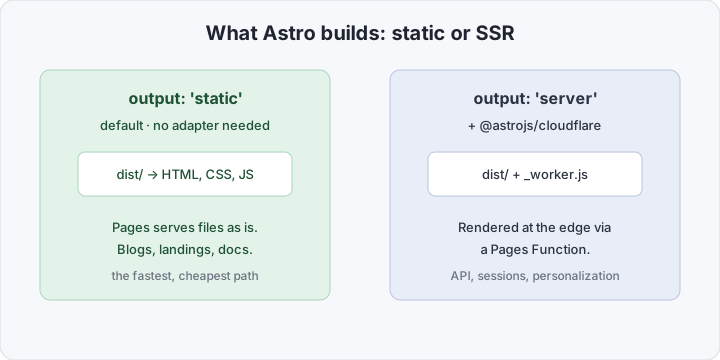
Either way the deploy artifact is the dist folder. From here on it’s identical.
The no-CI path: Git integration in five minutes
The shortest route is to write no YAML at all and hand the build to Cloudflare.
In the dashboard: Workers & Pages → Create → Pages → Import an existing Git repository. Connect GitHub (grant access to the repo, or the whole account, once), pick the repository and the production branch main. Then the build settings:
| Field | Value |
|---|---|
| Framework preset | Astro |
| Build command | pnpm build |
| Build output directory | dist |
| Root directory | / (empty) |
Cloudflare detects pnpm from the packageManager field in package.json — no need to install it separately. Hit Save and Deploy: Cloudflare clones the repo, runs pnpm build on its builders, and a minute later serves the site at <project>.pages.dev.
From here on every push to main builds and publishes prod automatically — no tags, no manual step, no secrets in the repo. Push to another branch or open a pull request, and Cloudflare builds it into a separate preview (more on that below).
One thing that’s easy to trip on: if package.json pins packageManager: [email protected], pnpm needs Node ≥ 22.13 — and the default Node on Cloudflare’s builders is older, so the build fails with This version of pnpm requires at least Node.js v22.13. The fix is a single environment variable: under Settings → Variables and Secrets add NODE_VERSION set to 22.22.2 (any version ≥ 22.13) and rebuild.
Custom domain
After the first deploy the site lives at <project>.pages.dev. To put it on your own domain: in the project, Custom domains → Set up a domain, enter example.com. If the domain is already served by Cloudflare, the dashboard creates the needed DNS record itself (a CNAME to <project>.pages.dev, CNAME-flattened for the apex); if it’s at a third-party registrar, Cloudflare shows you which CNAME to add by hand.
The TLS certificate is issued and renewed automatically — nothing to configure. Add both the apex (example.com) and www if you want both, and pick the primary one — the others redirect to it. Every subsequent deploy publishes straight to your domain; you never touch DNS again.
A separate dev environment: preview deploys
Git integration gives you a second environment for free. Prod is only the production branch (main); any other branch and any pull request build into a separate preview deploy with its own address <hash>.<project>.pages.dev, plus a stable <branch>.<project>.pages.dev for a named branch. Prod stays untouched — handy for drafts and reviews.
You can split the environments by config too. Under Settings → Variables and Secrets, variables are set separately for Production and Preview: for example, plug a test analytics ID into preview (or drop it entirely) and add a noindex so drafts don’t end up in search. Same trick for different API keys or feature flags.
The workflow becomes: push the draft/new-post branch → Cloudflare builds it into a preview, you check it live on a separate URL → merge into main → prod updates automatically.
When to move to GitHub Actions
Git integration hits its ceiling where you need control over the build: run tests as a gate before publishing, pin an exact Node version, reuse cache and steps across other jobs. Then you pull the build into your own CI and ship a finished dist to Pages.
| Git integration | GitHub Actions | |
|---|---|---|
| Where the build runs | Cloudflare builders | your CI |
| Setup | a few dashboard clicks | a YAML file in the repo |
| Node version, caching | limited | full control |
| Tests before deploy | separate | same pipeline |
| Preview per branch | automatic | via the --branch flag |
| Secrets | in the dashboard | in GitHub Secrets |
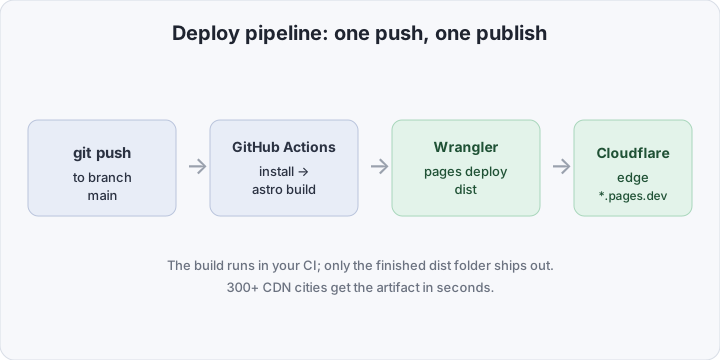
What you need to deploy from Actions
Four things: a Pages project, an API token, two repo secrets, and a workflow file.
1. Create the Pages project. A CI deploy must never prompt interactively, so create the project ahead of time — in the dashboard (Workers & Pages → Create → Pages → Direct Upload) or with one local command:
npx wrangler pages project create my-astro-app \
  --production-branch main
The name my-astro-app becomes the my-astro-app.pages.dev subdomain and appears in the deploy command.
2. Issue an API token. In My Profile → API Tokens → Create Token use the Edit Cloudflare Pages template (or a custom token with Account → Cloudflare Pages → Edit). While in the dashboard, copy your Account ID — it’s on the account home page on the right.
3. Put the secrets in the repo. Under Settings → Secrets and variables → Actions add two:
CLOUDFLARE_API_TOKEN— the token from the previous step;CLOUDFLARE_ACCOUNT_ID— your Account ID.
Never inline them in the YAML — a token with Pages write access has no business in git history.
4. Add the workflow. Create .github/workflows/deploy.yml:
name: Deploy to Cloudflare Pages

on:
  push:
    branches: [main]

jobs:
  deploy:
    runs-on: ubuntu-latest
    permissions:
      contents: read
      deployments: write
    steps:
      - uses: actions/checkout@v4

      - uses: pnpm/action-setup@v4

      - uses: actions/setup-node@v4
        with:
          node-version: 22
          cache: pnpm

      - run: pnpm install --frozen-lockfile
      - run: pnpm build

      - name: Deploy to Cloudflare Pages
        uses: cloudflare/wrangler-action@v3
        with:
          apiToken: ${{ secrets.CLOUDFLARE_API_TOKEN }}
          accountId: ${{ secrets.CLOUDFLARE_ACCOUNT_ID }}
          command: pages deploy dist --project-name=my-astro-app
That’s it. pnpm build calls astro build and writes the site to dist, then wrangler-action takes that folder and publishes it. pnpm/action-setup with no version reads it from the packageManager field in package.json. The pages deploy command is the same for static and SSR — Wrangler picks up _worker.js if it’s there. On npm, swap pnpm for npm ci and npm run build and drop the pnpm/action-setup step.
Preview branches in Actions
In Git integration, preview deploys are on by default. In Actions you wire them up yourself: out of the box the workflow above publishes only to production. Wrangler splits branches with the --branch flag — a deploy to the project’s production branch (main) goes to prod, any other branch goes to a preview at <branch>.my-astro-app.pages.dev.
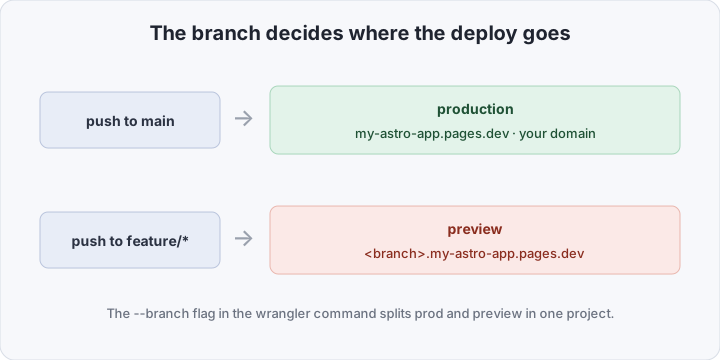
To enable it, widen the trigger to all branches and pass the current branch name into the command:
on:
  push:
    branches: ["**"]
# ...
      - name: Deploy to Cloudflare Pages
        uses: cloudflare/wrangler-action@v3
        with:
          apiToken: ${{ secrets.CLOUDFLARE_API_TOKEN }}
          accountId: ${{ secrets.CLOUDFLARE_ACCOUNT_ID }}
          command: >-
            pages deploy dist
            --project-name=my-astro-app
            --branch=${{ github.ref_name }}
Now every branch gets its own stable preview address — handy for review and QA before merging.
How to check it deployed
With Git integration the build log is right in the dashboard, under the project’s Deployments tab; with Actions the first sign is a green check in Actions, where the deploy step prints the URL of the published version at the end. Open it and verify the contents.
From the outside it’s one command — Cloudflare responses carry the telltale server: cloudflare and cf-ray headers:
curl -sI https://my-astro-app.pages.dev | grep -iE 'http/|server|cf-ray'
# HTTP/2 200
# server: cloudflare
# cf-ray: 8a1f...-DME
For an SSR page, confirm the dynamic part runs at the edge rather than serving cached HTML — for example, print the current time on the page and refresh a couple of times. The full deploy history, tied to commit and branch, lives in the project’s Deployments tab in the dashboard, where you can also roll back to any previous version in one click.
Common gotchas
Four mistakes that eat the most time.
Node version for pnpm. This one is about Git integration: if package.json pins packageManager: [email protected], pnpm requires Node ≥ 22.13. The default Node on Cloudflare’s builders is lower, and the build fails with This version of pnpm requires at least Node.js v22.13. Set a NODE_VERSION variable (22.22.2, or anything ≥ 22.13) under Settings → Variables and Secrets and rebuild. In GitHub Actions the same thing is fixed with node-version: 22 in setup-node.
nodejs_compat for SSR. If an SSR page uses a Node API (say node:crypto or Buffer), the deploy succeeds but the page crashes at runtime. The @astrojs/cloudflare adapter needs a compatibility flag. Add a wrangler.toml at the root:
compatibility_date = "2024-09-23"
compatibility_flags = ["nodejs_compat"]
Wrangler reads it during pages deploy.
Project name. The --project-name value must match the Cloudflare project name exactly. A typo, and in non-interactive CI Wrangler can’t ask which project to publish to — the step fails. It’s the first thing to check on a failed deploy.
Build folder. Astro always builds into dist unless outDir is overridden in the config. The pages deploy dist command assumes the default; if you changed the path, fix it here too.
Bottom line
Cloudflare Pages has two paths, and you don’t have to pick one for good. Git integration is five minutes in the dashboard: connect the repo, and every push to main builds and publishes itself, with free per-branch previews and automatic TLS on your domain. The moment you need control — tests before publishing, a non-default Node version, a pipeline shared with other services — you move to Direct Upload from GitHub Actions: a dozen lines of YAML and two secrets. A static Astro site needs only the default output: 'static'; a dynamic one adds the @astrojs/cloudflare adapter — and the deploy command stays the same either way.